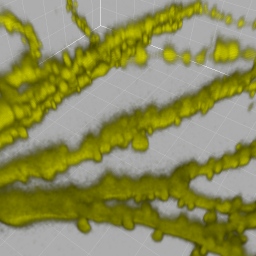
| Imaris |
NEW Spots

|
The spots component has been completely revised. The NEW spots collect
all the features of the old “spots”, “spot”, and “track” components.
The spots creation process as well incorporates all these features.
This allows to set up self-contained segmentation parameters. In order
to set up parameters for segmenting large images, a region of interest
can be defined during creation, and as final step, the entire image is
being processed. Furthermore the visualisation for spots and tracks has
been improved to display a huge number of objects.
|
Spots Creation Wizard

|
- With Back you return to the previous window of the create wizard.
- Press Next to proceed with the next window of the create wizard.
- Click on Finish to calculate the desired spots and display the spots in the viewing area.
- If you do not want to create spots and/or tracks click on Cancel.
|
|
Overview
|
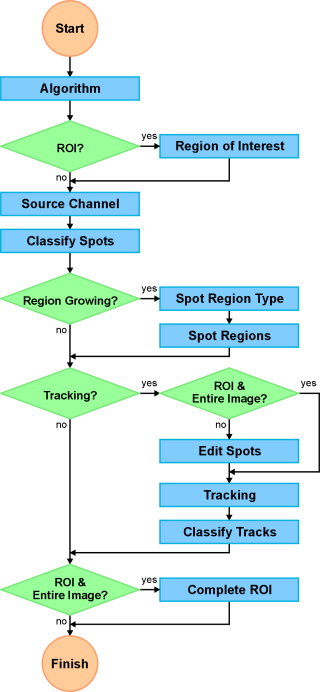
This is the flow diagram of the spots create wizard. For further details please refer to chapter:
|
|
Algorithm |
- Specifies the path through the creation wizard.
- Process region of interest?
- Process entire image at the end?
- Activate this options, if only a part of the image is interesting, or if the image is to large in order to find good
parameters (because calculation takes to long).
- Compute spots with different diameter (region growing)?
- Perform tracking?
|
Region of Interest
|
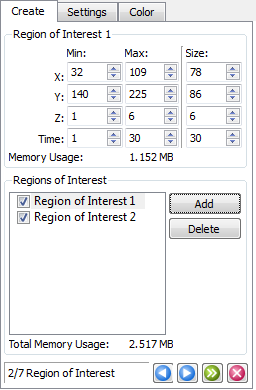
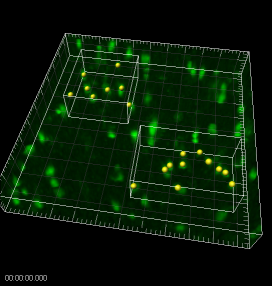
- Specify one or multiple regions of interest. If the entire image is being processed at the end, it is recommended to
specify regions, which contain signals of background and object.
- Create Spots and Tracks only within one or more regions of interest.
- Interactive setup for position and size (default ROI size is limited to 100 MB).
- Allows to find efficiently segmentation parameters for a huge image (using only a subset of the entire image data).
- Allows to segment different regions with different parameters.
|
Source Channel
|
- Select source channel and enter an estimated diameter.
|
Classify Spots
|
- Specify a filter sequence to separate good and bad spots.
-
Choose as many filters as you like. Each statistics value type can be
used as filter (see menu “edit / preferences / statistics / spots”).
|
Spot Region Type
|
- Segment image from absolute threshold (like iso surface), or from local contrast.
|
| Spot Regions |
- Specify how the diameter of a spot is computed.
- Automatic or interactive segmentation for spot regions.
- Orthogonal slicer or volume rendering as preview.
|
| Edit Spots |
- Manually adjust spots before the tracking.
- The dialogue is not available, if the entire image should be processed at the end. Manually edited spots would be lost.
|
| Tracking |
- Specify tracking algorithm type and parameters.
- Brownian motion / autoregressive motion / connected components.
|
| Classify Tracks |
- Specify a filter sequence to separate good and bad tracks.
- Choose as many filters as you like. Each statistics value
type can be used as filter (see menu “edit / preferences /
statistics / spots”).
|
| Complete ROI |
- Performs all the calculations for the entire image (for a huge image this maybe takes a while).
|
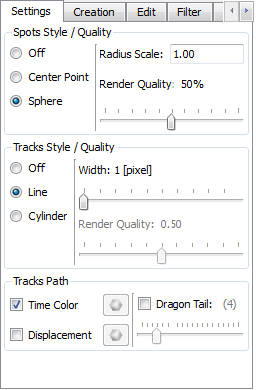
| Spots AND Tracks Settings |
- Settings for Spots AND Tracks.
- NEW: Spots visualisation as center points
|
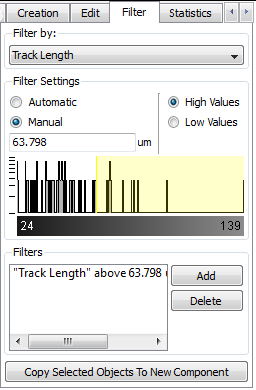
| Spots Filter |
- Replaces earlier “sorting” tab.
- Filtered Spots or Tracks are highlighted as selection.
- Automatic filter threshold based on statistical distribution (two means threshold).
- Selection can be copied as new Spots component within the Surpass scene.
|
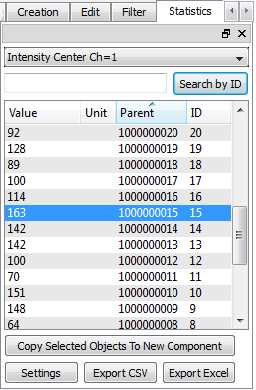
| Spots Statistics |
- Statistics contains ALL the values (earlier versions of Imaris
were only able to display some aggregated values).
- Export as file (can be read by Excel and OpenOffice Calc).
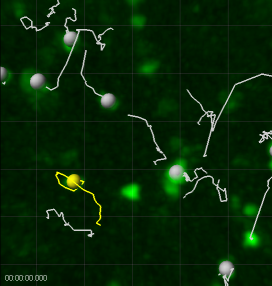
- Interactive two-way-selection. Select in 3d => corresponding
row in statistics table is highlighted. Select in statistics table =>
according object in 3d is highlighted.
- Selection can be copied as new Spots component within the Surpass scene.
|
| Spots Restrictions |
Restrictions depending on Modules / Products.
The features illustrated above require Imaris, MeasurementPro, and
ImarisTrack. Without MeasurementPro, the “Filter” and “Statistics” tab
are not available. Without ImarisTrack, the track creation steps, and
the track settings are not present.
|
| Spots Compatibility |
Spot and Track information from old scene files (Imaris 5.7.2 and earlier) will be ignored. |
| Important Note for Estimated Spot Diameter |
We
noticed that the spot detection works much better, if the diameter is
underestimated. This fact leads either to a good spot detection with
bad voxel statistics, or to a bad spot detection with (good) voxel
statistics. For this reason, we decided to adjust the algorithm for the
new spots in Imaris 6.0 a little bit. In order to get the same spot
detection with the old and the new version, you have to scale up the
old estimated diameter by 4/3.
Example:
Imaris 5.7 estimated spot diameter 3 um
Imaris 6.0 estimated spot diameter 4 um |
| Drift Correction |
The
drift correction is available with new features. On the tab "Edit" you
find the button "Correct Drift" with the new parameters:
- Embed/crop dataset.
- Correct track positions.
|
| Semi-automatic Surface Segmentation |
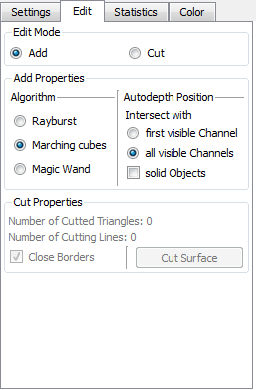
Single
objects can be added by one easy mouse click. Select “edit” tab of
surface object (Iso surface split). There are three different
techniques available:
|
| Edit Surfaces |
| Rayburst |
|
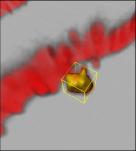
- Optimized for objects which are similar to a sphere.
- Position the autodepth cursor to the center of the object
- Adjust the size of the box to the approximate size of the object (using the mouse wheel).
- Shift-click to create the new object.
|
 |
| Marching Cubes |
|
- Optimized for objects with a complex rough surface
- Position the autodepth cursor to the center of the object.
- Adjust the size of the box to the approximate size of the object (using the mouse wheel).
- Shift-click to create the new object.
|
 |
| Magic Wand |
|
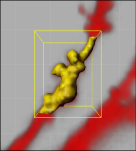
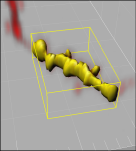
- Optimized for single,c complex objects, which are located over a larger region of the image.
- Position the autodepth cursor to the border of the object (the size of the box does not influence the result).
- Shift-click to create the new object.
|
 |
|
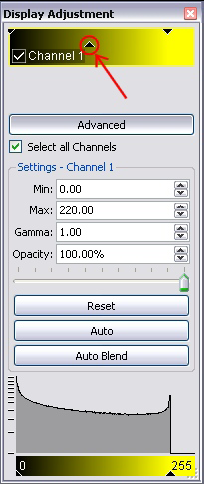
| Gamma Adjustment |
- Interactive adjustment of gamma for display.
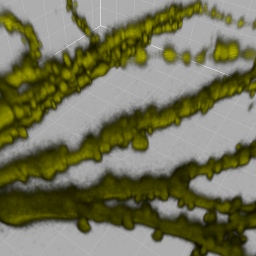
- More colorful volume rendering in blend mode.
- Makes dark regions brighter without changing original image intensities.
- Click onto middle triangle in the display adjustment dialogue and drag it to the left to increase brightness.
|
| New File Readers |
- Andor: Multi-Tiff (series)
- Biovision: IPLab (MAC)
- MRC
|
| Updated File Readers |
- LIF64
- Compressed Axiovision
|
| Updated Manuals |
|
| FilamentTracer |
Segment index is now exported to Excel statistics.
- Select the “Edit” tab, and press “From index...”.
- Enter
the index number of a specific segment. The corresponding segment is
highlighted in 3d. The index of a selected segment can also be
inspected on the “Settings” tab.
|