- Contact staff@hpc.nih.gov so that we can enable access to your Google Drive. You will need to provide us with the
identity (e.g. 'aaaa@gmail.com') that you use to access your Google Drive. Do not proceed to the next step until
you have confirmation from the HPC staff that we have enabled access for you.
- After we have confirmed that we have set up access for you, in a web browser, navigate to google.com, click 'Sign in', and sign in with
the Google account that you use to access your Google Cloud Storage bucket. You may need to go through the Google verification process.
- In the Globus browser File Manager Collection Name box, or in the
Globus Collections page, search for 'NIH HPC Google Drive Collection.
- You will be asked to authenticate using the usual NIH login process.
- You can agree to release the information to Globus. It's simplest to 'Send now and in the future'.
- Select your @nih.gov identity as requested on the next screen.
- And agree to allow Globus to manage your data transfer etc.
- Now you should get a screen showing the Collection name. Since this is the first time you are using this collection,
you will be required to authenticate again. Select Continue for the initial setup.
- and then 'Continue' for the authentication/consent.
- and then 'Continue' to Register a Credential
- Note that '/My Drive/' will appear in the Path field. In the unlikely event that it didn't, type that manually and hit enter.
Shared Google Drive
A common situation is where a collaborator shares data with you via Google Drive, and you want to download that data directly to Biowulf or to
another Globus endpoint.
First, make sure that you can see the data in your Google Drive. Go to https://drive.google.com, log in with your
Google identity, click on 'Shared with Me', and confirm that you can see the drectory that your collaborator has shared with you.
The Google account that you used here needs to be enabled for the Google Drive connector as described above.
Once you have that set up, in the Globus File Manager window,
you should be able to go to the 'NIH HPC Google Drive Collection', and see the files in yor Google Drive.
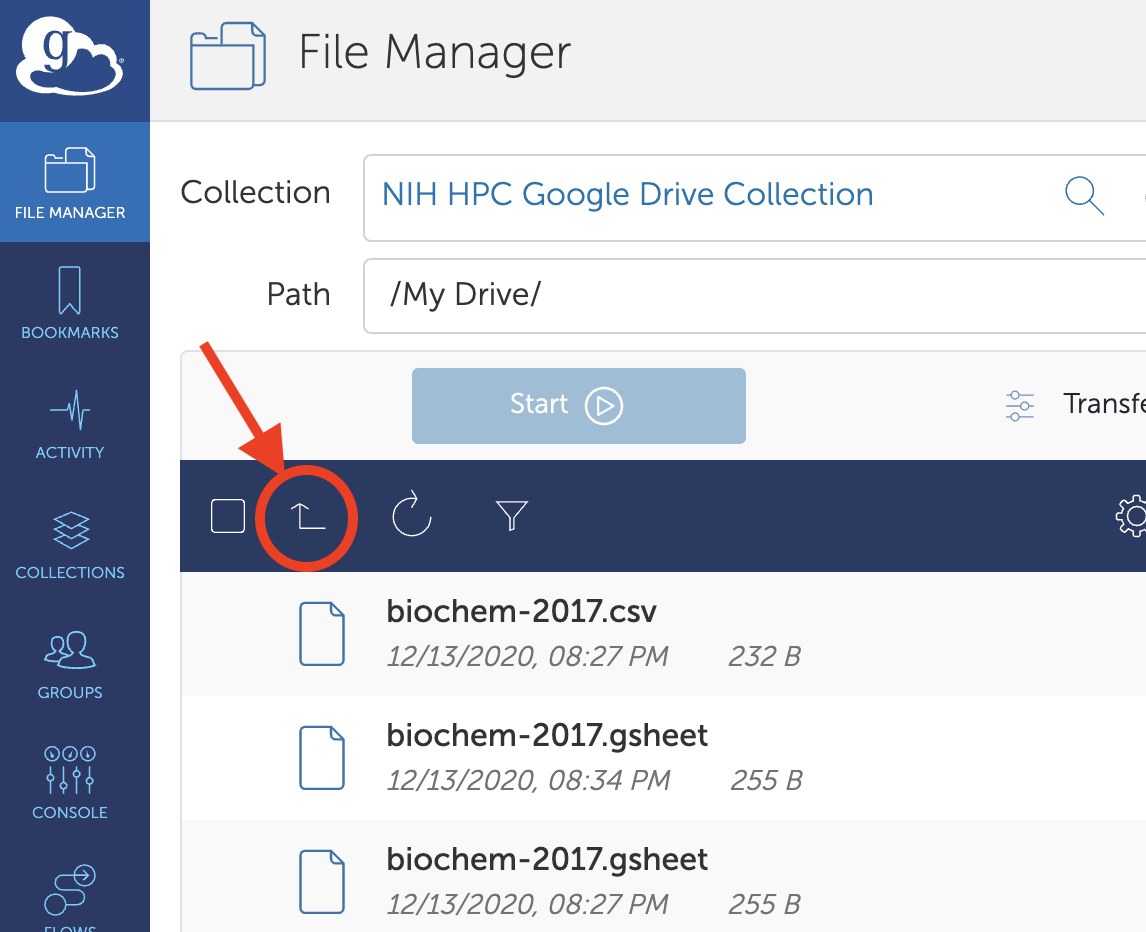
Note that you will not see the directories that have been shared with you. To access, those, click the 'up-one-directory' icon (marked in red above). You should now
see the directories 'My Drive', 'Shared with Me', etc. as in the image below. (You can also enter '/Shared With Me/' in the Path box).
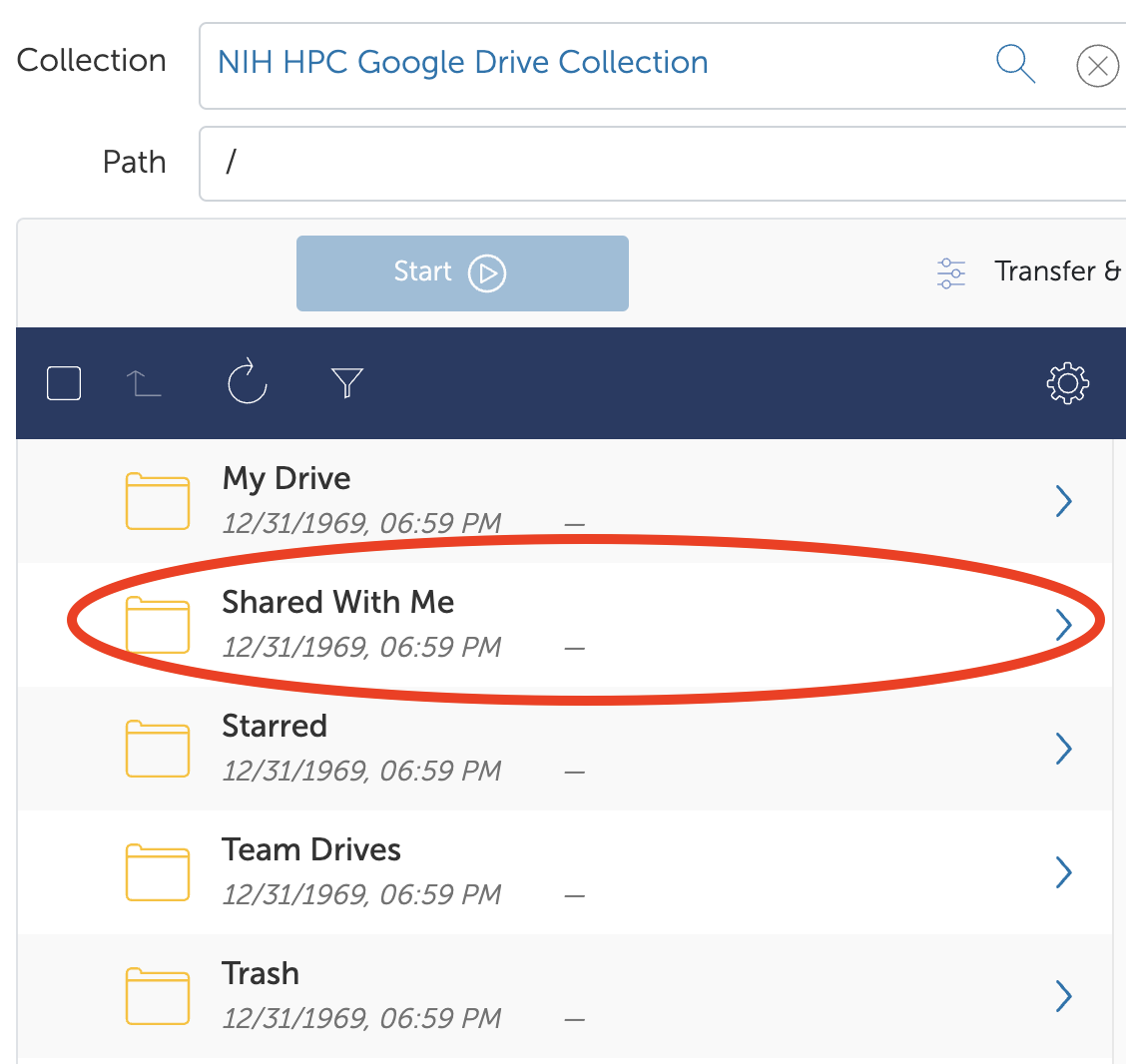
Click on 'Shared with Me', or enter the path as /Shared With Me/, and you should see all the Google Drive files and directories that have been shared with you.
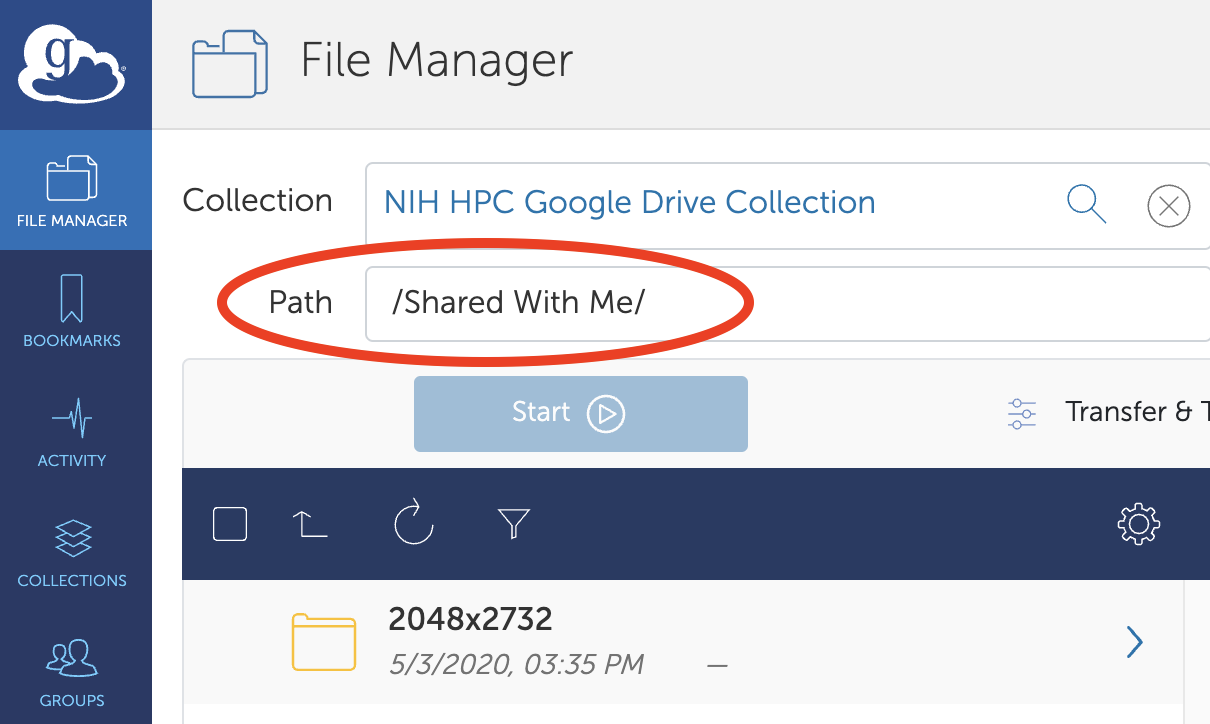
You should now be able to select a directory and transfer it to the Biowulf Globus endpoint "NIH HPC Data Transfer'.
 See the links in the Quick Links menu at left for details.